
Workflow Sharing Guide
FlowAI “Workflow Sharing” lets you publish a workflow as a public share link. Anyone with the link can view the workflow graph, and—depending on your settings—run it or copy it into their own account.
What you can do with sharing
- Demos: Send a workflow to teammates or customers—open the link and preview immediately.
- Controlled public runs: Allow visitors to run the workflow while managing cost/abuse via billing and rate limits.
- Controlled template distribution: Allow visitors to copy the workflow into their own workspace for editing.
- Auditability: Review access logs (view/run/copy) in Share Management.
Before you start
- Save the workflow first: Finish debugging and save the latest version before sharing.
- Check sensitive content: Node settings, prompts, and sample inputs may contain sensitive data—sanitize before publishing.
- Decide whether you need “Allow copy”: If the workflow references other workflows (has dependencies), the system will disable copying to protect privacy/permissions (the toggle will be disabled with a reason).
- Pick a billing model: Who should pay for executions (the sharer or the runner) affects whether visitors must log in to run.
Entry: open “Workflow Shares”
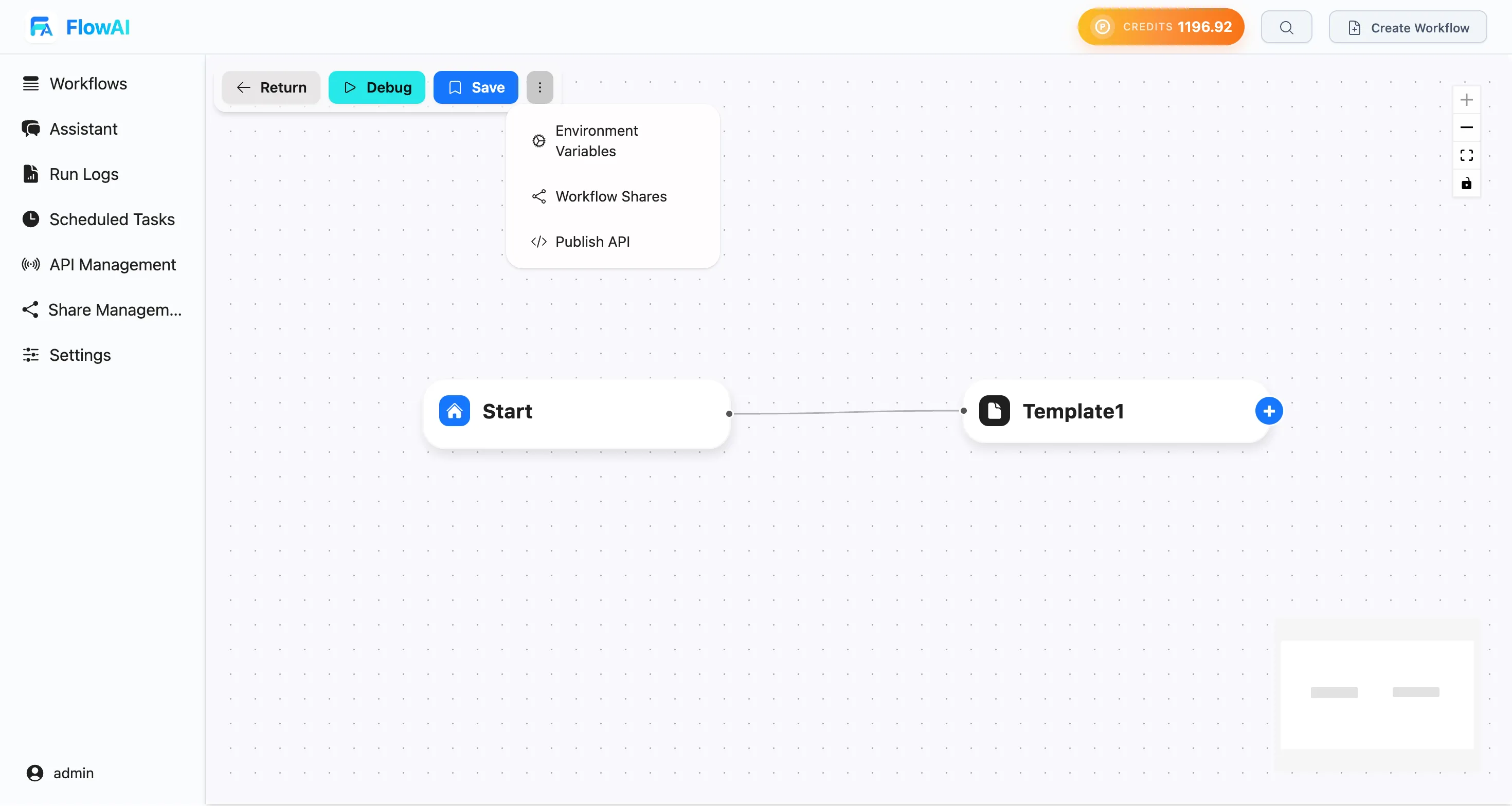
In the workflow editor, open the top action menu (”…”) and click “Workflow Shares”.
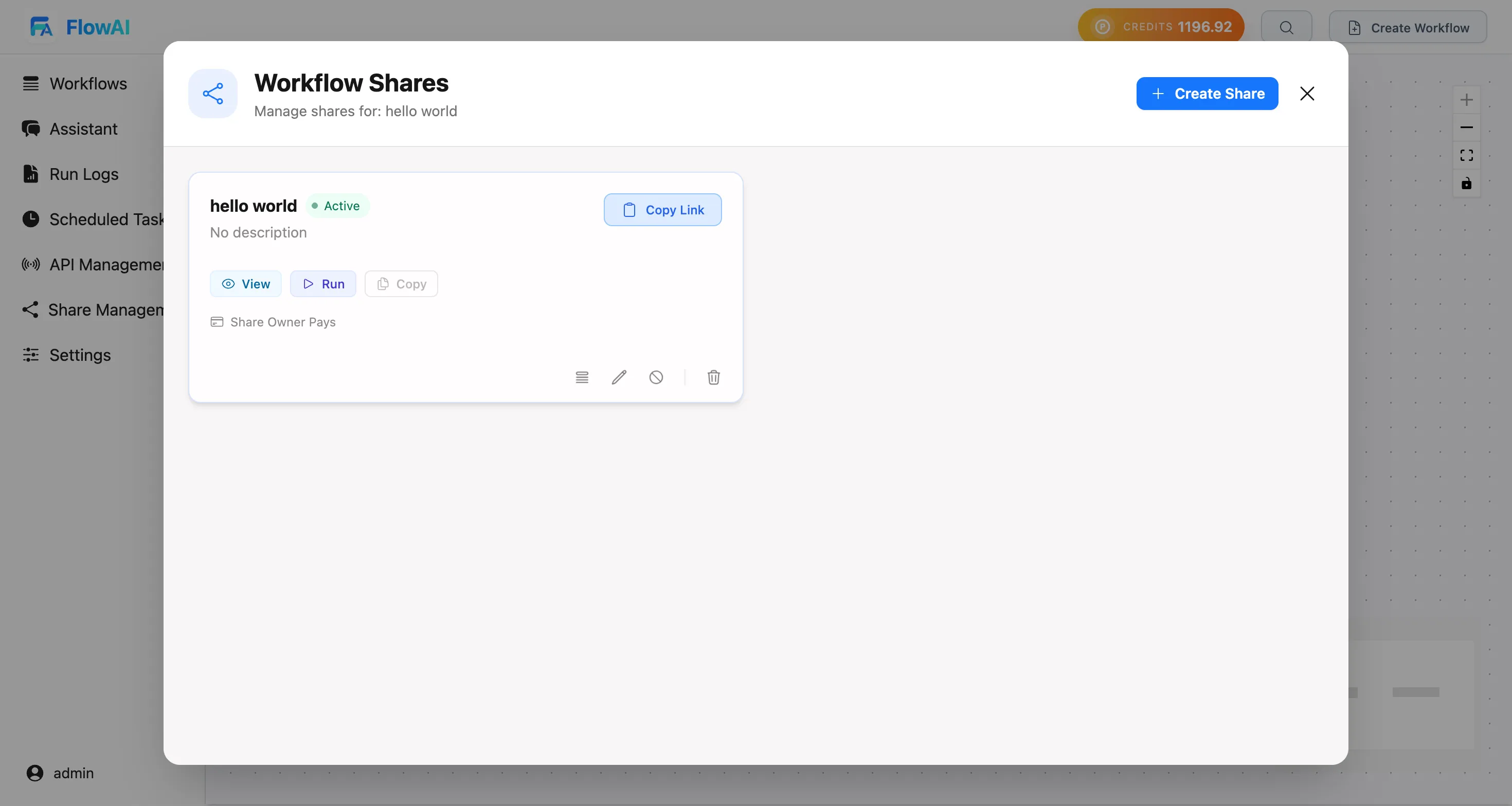
This opens the Share Management modal where you can create shares, copy links, edit/disable/delete shares, and view access logs.
Create a share (recommended flow)
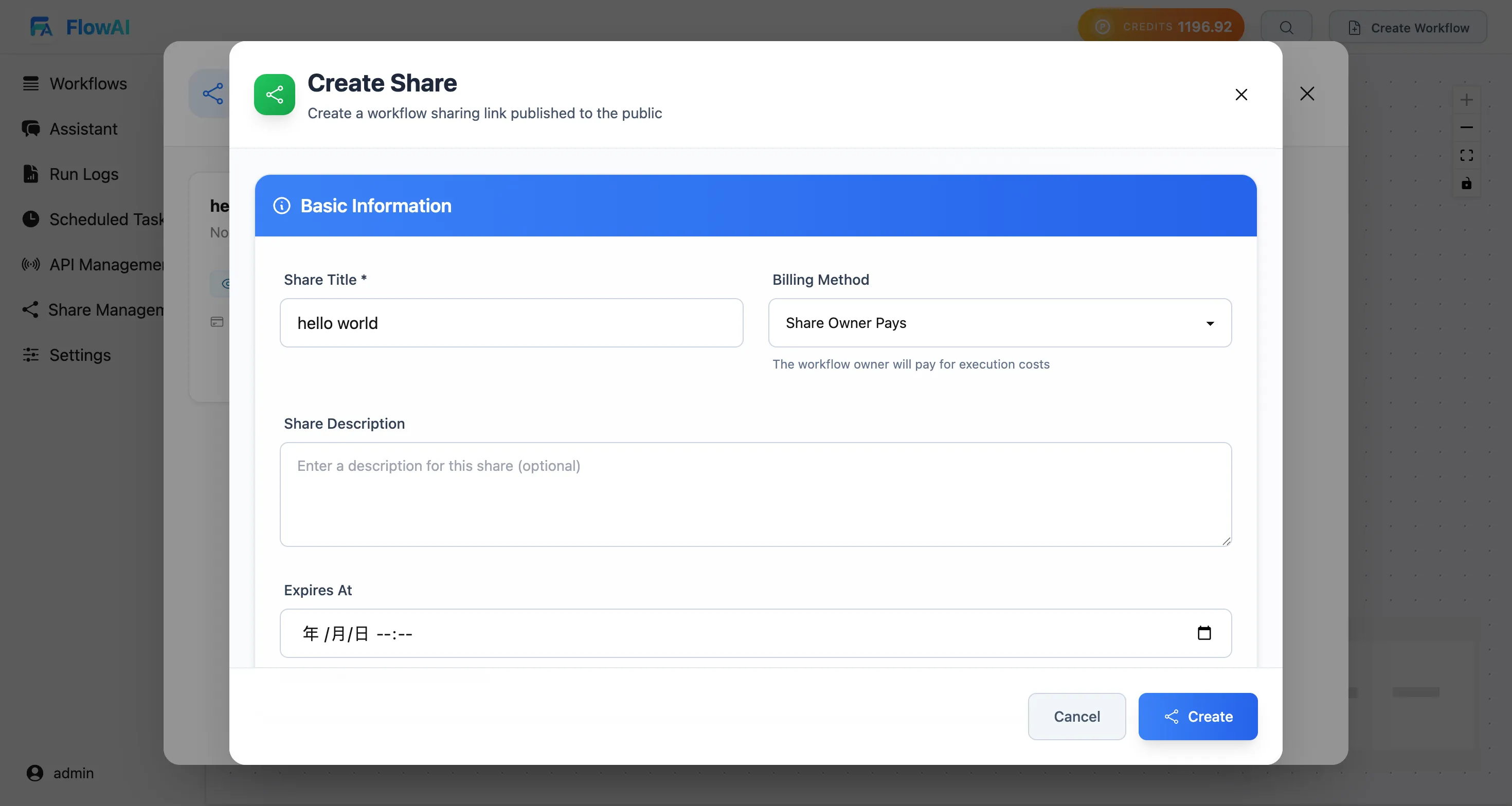
- Click “Create Share”.
- In Basic Information, fill:
- Title (required; defaults to the workflow name)
- Description (optional)
- Billing: Sharer pays / Runner pays
- Expires at: leave empty for no expiration
- In UI Configuration, set:
- Whether to show the Run button
- Whether to show the Copy button (may be disabled if dependencies exist)
- A Welcome message (optional)
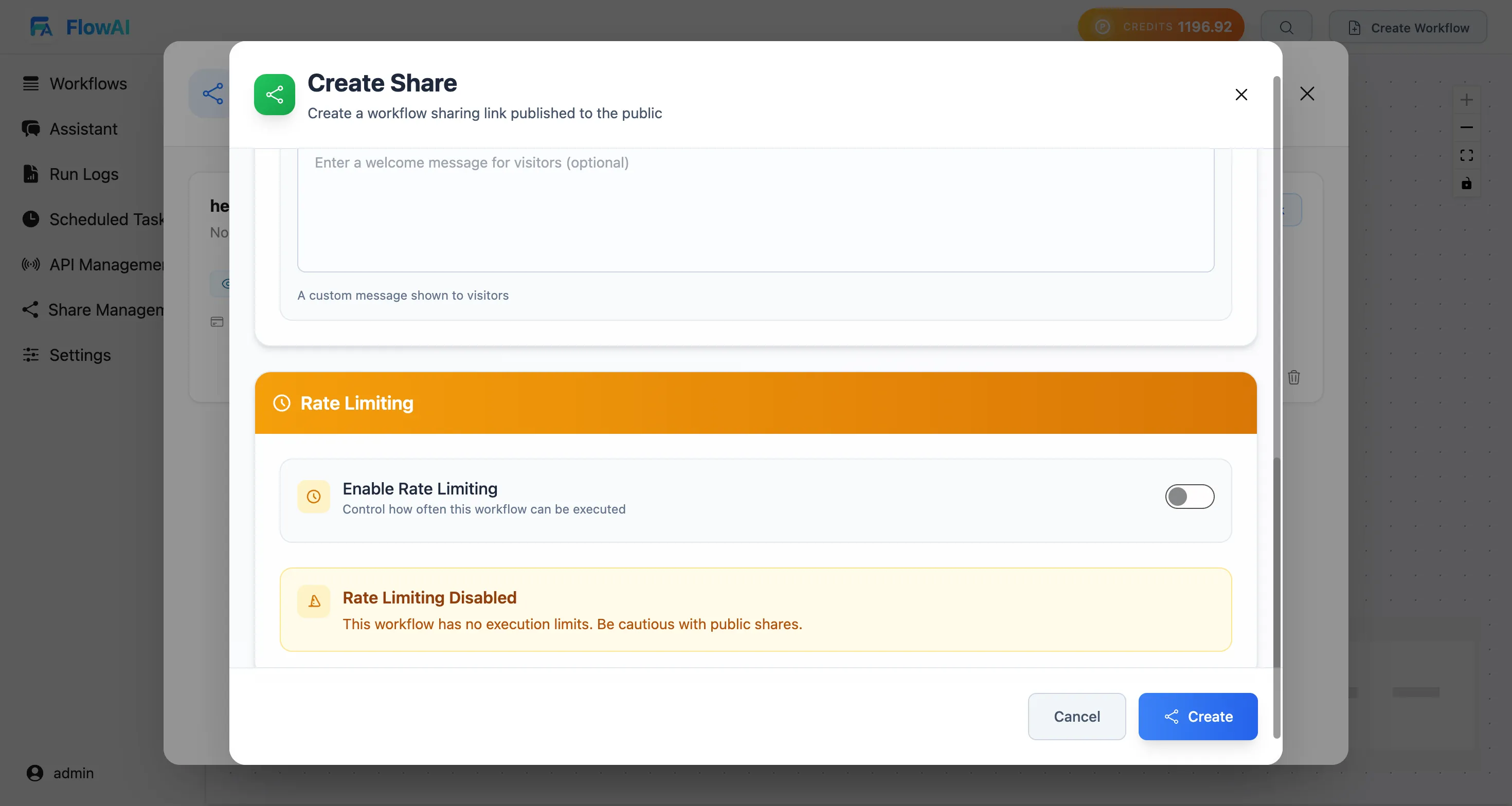
- In Rate Limiting, optionally enable and set:
- Daily limit, hourly limit, per-IP daily limit, cooldown seconds
- Click “Create”.
Fields & behavior
Billing: Sharer pays vs Runner pays
- Sharer pays: Executions consume the workflow owner’s credits/quota. Great for public demos—strongly recommended to enable rate limiting.
- Runner pays: Executions consume the visitor’s own credits/quota. Visitors must log in to run (the runtime area will show a login overlay).
Expiration
- Leaving it empty keeps the share valid indefinitely.
- After expiration, the share page can still be opened for viewing, but run/copy will be unavailable (based on your configuration and system policy).
Permissions: Run & Copy
- View: The share page always allows viewing the workflow structure/graph.
- Run: Shows a “Run” button so visitors can execute and view outputs.
- Copy: Shows a “Copy” button so visitors can copy the workflow into their own account.
- Copy typically requires the visitor to log in.
- If your workflow has dependencies, copying is disabled to protect related workflows.
Welcome message (optional)
- Use it for instructions, input format, caveats, and contact info.
- It shows automatically on first open (per session) and can be reopened from the info icon next to the title.
Rate limiting (optional, strongly recommended for public shares)
Rate limits are designed to prevent abuse and control execution costs. They mainly affect “Run” (view/copy are not rate-limited):
- Daily run limit: max runs per day for the share (global across all users).
- Hourly run limit: max runs per hour per IP.
- Per-IP daily limit: max runs per day per IP.
- Cooldown seconds: minimum interval between two runs from the same IP.
Copy the share link and distribute
After creating a share, click “Copy link” on the share card and send the URL to anyone who needs access.
You can keep multiple shares for the same workflow (e.g., internal testing vs public demo), each with different billing, expiration, and rate limits.
What visitors see after opening the link
On the shared page:
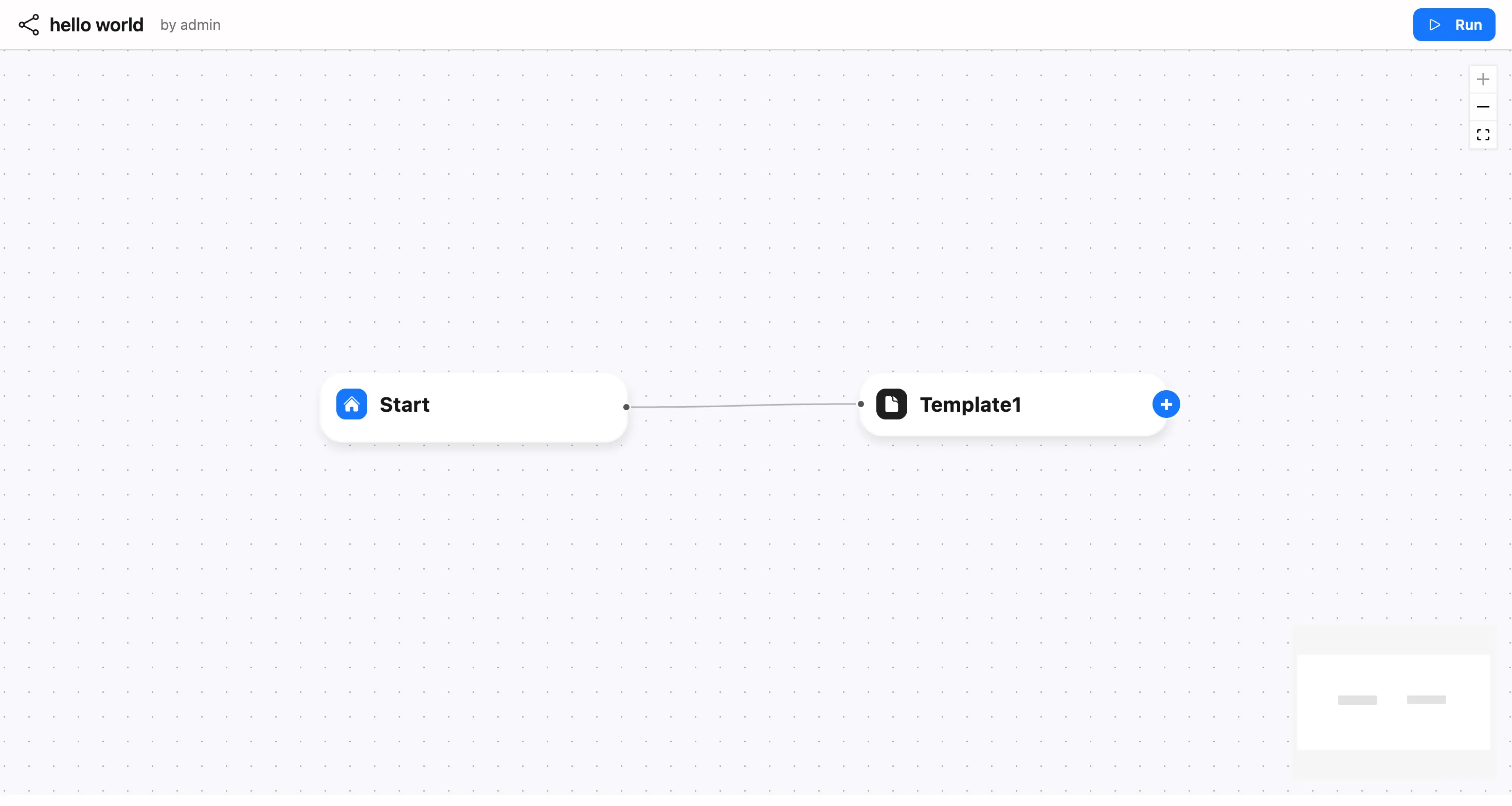
- The header shows the share title and owner; Run/Copy buttons appear based on your settings.
- The workflow view lets visitors inspect the graph; the runtime view is where they provide inputs and see outputs.
- If you choose Runner pays, visitors must log in to run (runtime area is gated until login).
- If rate limits are triggered, the runtime area will show a “frozen / try again later” protection message.
Manage existing shares (edit/disable/delete/logs)
In the Share Management modal, you can:
- Edit: Update title/description, billing, expiration, run/copy toggles, welcome message, and rate limits.
- Enable/Disable: Temporarily take the share offline.
- Delete: Permanently remove the share link.
- Logs: Review access logs for view/run/copy events (time, IP, browser info, etc.).
FAQ
Why is “Allow copy” disabled?
If the workflow references other workflows (dependencies), copying is disabled to protect related workflows’ privacy and permissions. Options:
- Merge dependent logic into a single workflow, or
- Share with view/run only (no copy).
Visitors can’t run (or are asked to log in). What should I do?
- With Runner pays, visitors must log in to run.
- If Run is disabled, the share page won’t show the Run button.
- If rate limits are triggered, visitors must wait for cooldown/limits to reset.
Advanced: embed in your website (iframe)
To embed the share page on your own site, load the share URL in an iframe (enable rate limiting for public embeds):
<iframe src="https://flowai.cc/dashboard/shared/<share_uuid>" style="width: 100%; height: 800px; border: 0;"></iframe>In iframe mode, the share page supports postMessage commands (advanced integrations) such as hiding the header or triggering actions:
iframeEl.contentWindow.postMessage( { scope: "flowai-share-embed", shareUuid: "<share_uuid>", command: "hide-header", payload: { hidden: true }, }, "*");