
Scheduled Workflow Automation Guide
FlowAI lets you put any workflow on a recurring schedule so critical routines happen exactly when they should. This guide shows how to get started, keep automations reliable, and fold them into everyday operations without extra overhead.

Highlights
- Flexible timing: Use quick presets for everyday, workday, or weekly cycles, or switch to custom expressions for sophisticated calendars.
- Time-zone aware: Every schedule remembers its own time zone, so global teams can trigger workflows at local hours.
- Input snapshots: When you define a task, FlowAI keeps a copy of the required inputs to deliver consistent results on every run.
- Complete history: Each execution produces an auditable record with the planned time, status, and output log.
Reliability guardrails
- Schedule previews: FlowAI validates every cadence and shows the next occurrence before you publish.
- Managed execution: Capacity and concurrency are handled by the platform, so runs stay orderly without any servers to maintain.
- Health monitoring: Built-in alerts surface slow or failing runs and point you straight to the details that need attention.
- Traceable history: Each execution stores status, owner, and outputs, making audits or handoffs simple.
Where to find scheduled tasks
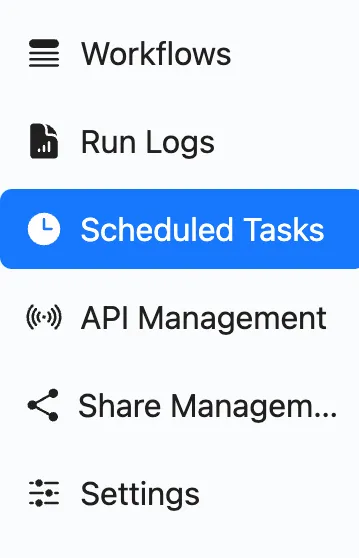
From the Dashboard, open Workflows (/dashboard/projects) and click Scheduled Tasks in the left navigation.
Setting up a scheduled task
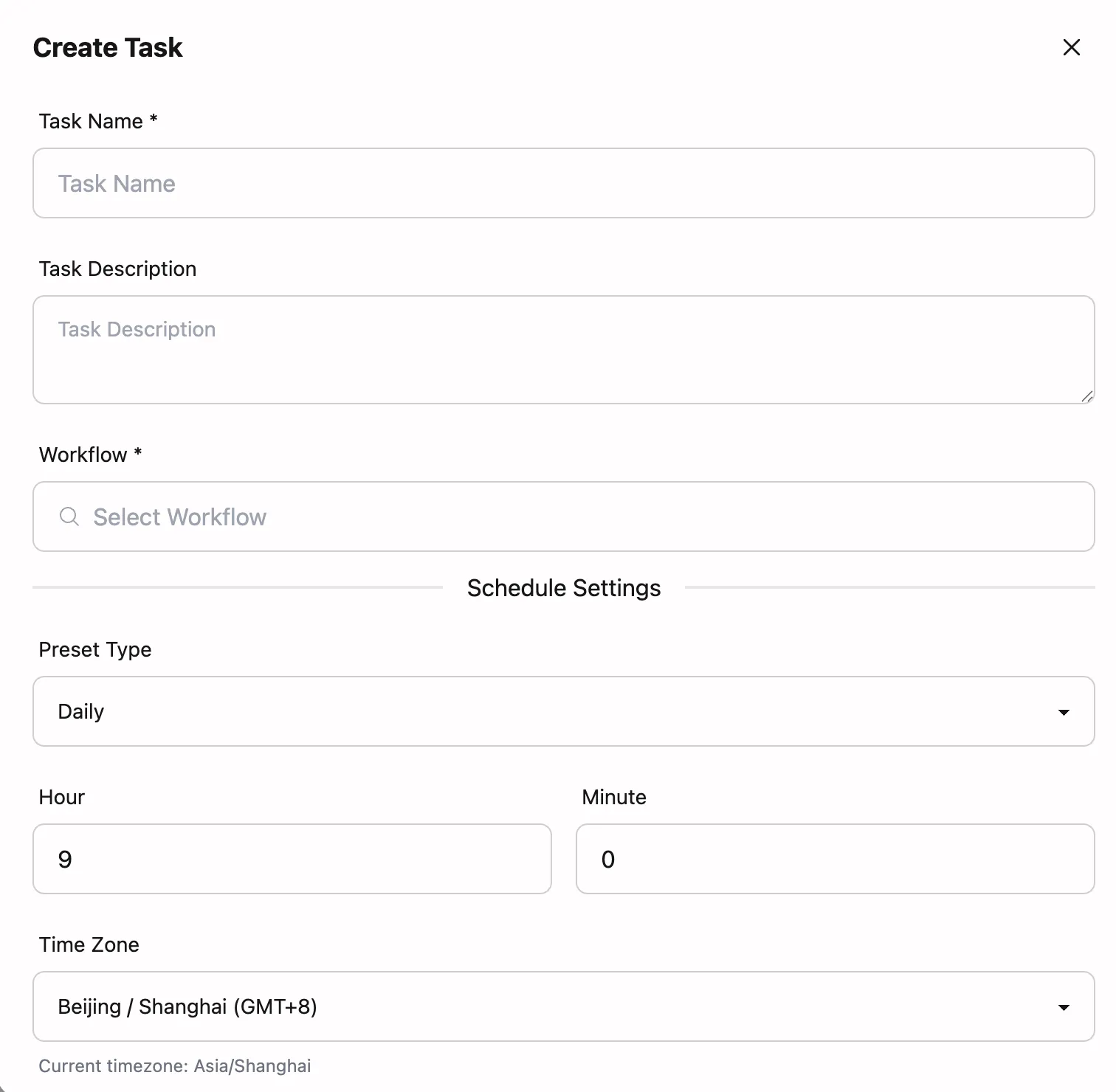
- Go to Scheduled Tasks and click Create Task.
- Describe the task: Add a clear name and description so teammates understand the intent and ownership.
- Pick the workflow: Select the workflow you want to automate.
- Configure the timetable: Choose a preset cadence or switch to a custom Cron expression, then set the time zone.
- Prepare the input snapshot: Provide the variables the workflow expects; FlowAI will reuse this snapshot for every recurrence.
- Save and activate: After saving, FlowAI computes the next run time and the task appears in the list.
Cron examples
If you choose a custom Cron, these are common patterns (interpreted in the task’s selected time zone):
0 9 * * *: every day at 09:00*/10 * * * *: every 10 minutes0 9 * * 1-5: weekdays at 09:000 0 1 * *: on the 1st of every month at 00:00
What you can expect during execution
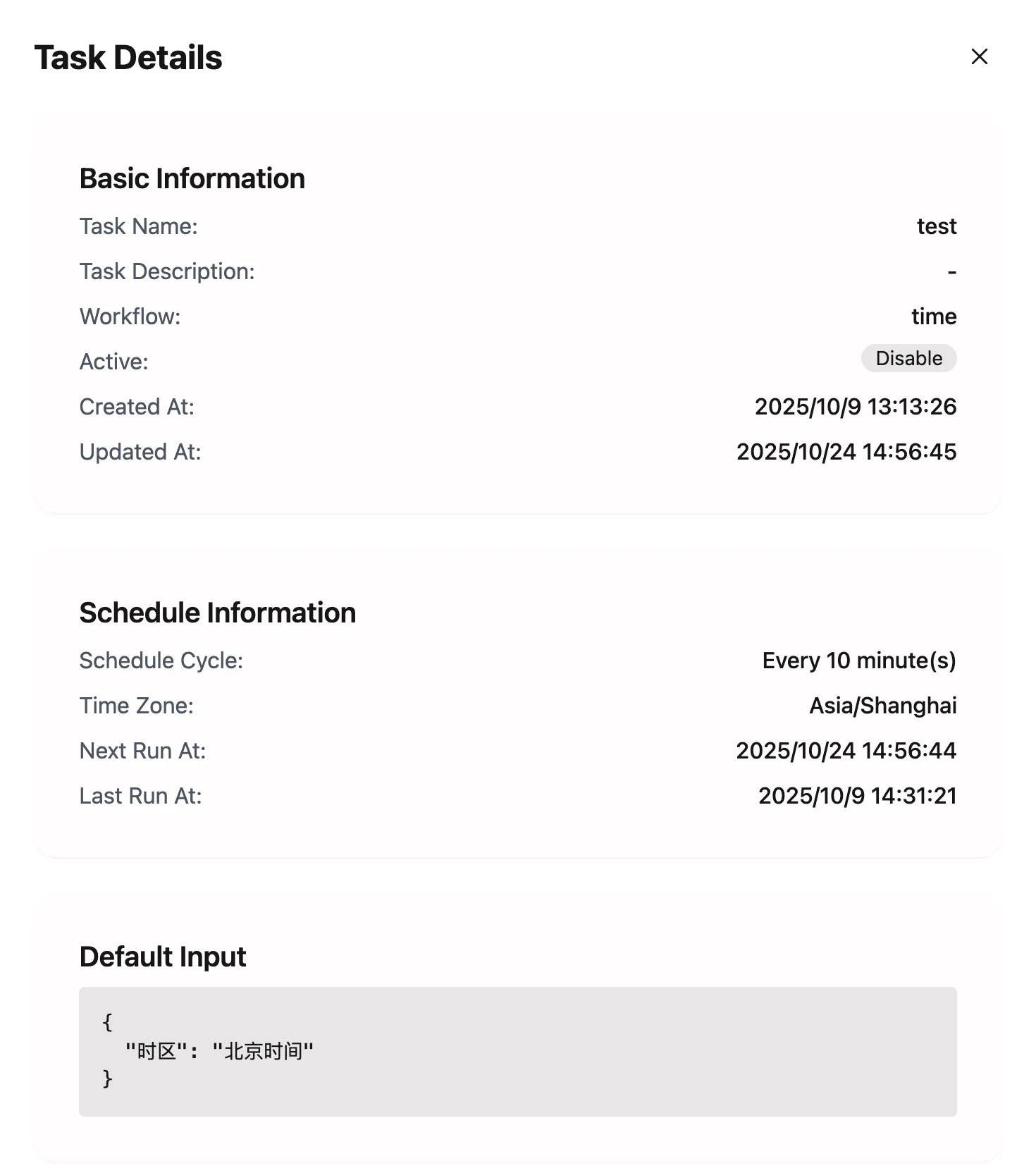
- At-a-glance status: The task list reveals the next run and the latest outcome, making health checks effortless.
- Live progress: Follow each step from the run detail view with real-time updates during execution.
- Linked logs: Successful runs are tied to standardized logs, ready for retrospectives, integrations, or automated reporting.
Staying in control
- Pause intentionally: Toggle a task off to skip upcoming runs and resume when the timing is right.
- Automatic follow-ups: FlowAI detects interruptions, retries when safe, and lets you know if a review is needed.
- Manual replay: Use run history to trigger catch-up executions after configuration changes.
Popular use cases
- Morning digest: Compile and deliver daily insights to sales or operations teams without fail.
- Model health checks: Run validation workflows on a cadence to watch model performance and surface anomalies.
- Customer onboarding: Trigger educational workflows in stages so every new customer gets the same curated experience.
Best practices
- Keep inputs replayable: Ensure every external dependency can be accessed without manual steps when the workflow runs unattended.
- Document intent: Use the description field to spell out the goal, frequency, and owner to align teammates.
- Pair with alerts: Enable notifications for high-value tasks so failures or long-running executions surface immediately.
Ready to automate?
Create your first scheduled task and let FlowAI handle repetitive routines while you stay focused on strategic work.
Need a Custom AI Agent?
Custom AI agents designed for real-world business operations.